
Validate your scripts installation
Overview
This guide helps you check that JOIN Stories is correctly installed and working on your website. The steps are designed to be followed in order. If you’re not comfortable with code or the browser console, ask your developer or contact JOIN Stories support with the details at the end of this guide.
Before you start
Complete the installation guide first.
1. Global Script Validation
What you’re checking: That the JOIN Stories script is present on your site and loads correctly.
1.1 Script Installation
The JOIN Stories script must be installed in the <head> of every page. It looks like this (your team ID replaces {TEAM_ID}):
<script src="https://{TEAM_ID}.my.join-stories.com/scripts/global.js" type="text/javascript"></script>
Team ID
Replace
{TEAM_ID}with your actual team ID. You can find it in the Settings menu in JOIN Stories Studio.
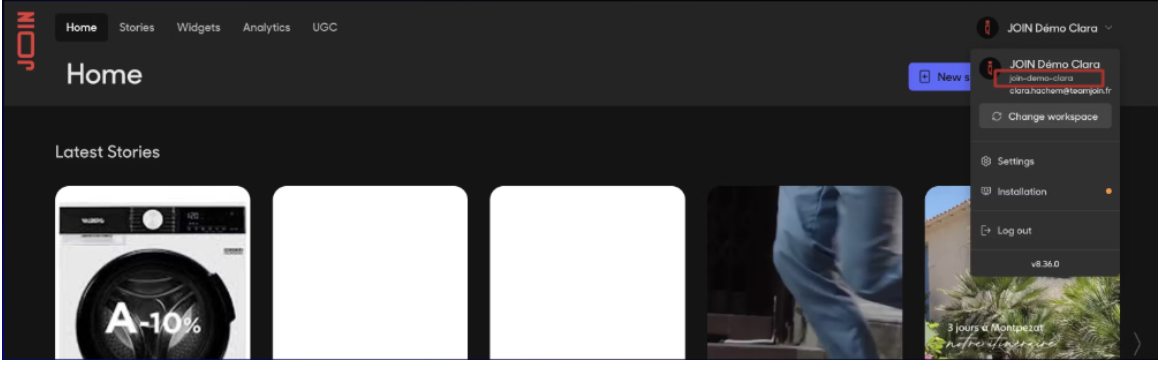
1.2 Validation Process
Use your browser’s developer tools (press F12). The steps below use the Elements, Network, and Console tabs inside that window.
Step 1: Check the script is in the page
- Open developer tools (F12) and go to the Elements tab.
- Search for the script tag in the
<head>section (e.g. search for “global.js” or “join-stories”). - Confirm the script URL matches your domain (your team ID in the address).
Step 2: Check the script loads without errors
- Open the Network tab in developer tools.
- Reload the page.
- Find the request to
global.js. - Check that the status is successful (e.g. 200 OK; any code below 400 is usually fine).
Step 3: Check JOIN Stories is available
- Open the Console tab in developer tools.
- Type:
window.joinStoriesand press Enter. - You should see an object (not “undefined”). It should contain something like
globalScript.
1.3 Success Indicators
- ✅ The script tag appears in the
<head>of your page. - ✅
global.jsloads successfully (e.g. 200 OK in the Network tab). - ✅ In the Console,
window.joinStoriesexists and containsglobalScript. - ✅ JOIN Stories is ready (see Events documentation for advanced use).
- ✅ The JOIN Stories Studio Installation page shows that the script is detected (it looks for at least one “page view” from your site).
2. Checkout Tracking Validation
What you’re checking: That when a customer completes a purchase, your thank-you page correctly notifies JOIN Stories (order total, currency, and list of products). This is used for conversion and revenue tracking.
Your site calls window.JoinStories.sendCartValidated(...) with the order data. Full implementation details: Conversion Code documentation.
Data to send when validating the cart (checkout)
| Field | Required? | What to send |
|---|---|---|
transaction_id | Optional | Order or transaction ID. If you don’t send it, JOIN Stories will generate one. |
total_base_amount | Required | Total amount before discounts (number or numeric string). |
total_final_amount | Required | Final amount paid (number or numeric string). |
currency | Required | Currency code (e.g. "EUR", "USD"). |
products | Required | List of products in the order. Must contain at least one product. Each product needs the same kind of fields as in section 3 (product id, prices, quantity, currency). |
2.2 Validation Process
Step 1: Test on the thank-you page
- Do a test purchase and go to the confirmation / thank-you page.
- Open the Console tab in developer tools (F12).
- Check that there are no red errors (see section 5.2).
Step 2: Optional – test from the Console
You can run the following in the Console to simulate a validated cart. ⚠️ This will send a test event to your Analytics. ⚠️
// Test the conversion tracking function
window.JoinStories.sendCartValidated({
    transaction_id: 'TEST-12345',
    total_base_amount: 100.0,
    total_final_amount: 85.0,
    currency: 'EUR',
    products: [
        {
            product_id: 'PROD-001',
            product_variant: 'RED-L',
            product_price: 50.0,
            product_base_price: 50.0,
            product_final_price: 42.5,
            product_quantity: 2,
            currency: 'EUR',
        },
    ],
});
Step 3: Check that data reaches JOIN Stories
- Open the Network tab in developer tools.
- Trigger the thank-you page (or run the test above).
- Look for requests to JOIN Stories (e.g. URLs containing
api.stories.studioor your analytics domain). - Confirm the data sent matches the Conversion Code documentation (e.g. at least one product, correct totals).
2.3 Success Indicators
- ✅ Calling
sendCartValidateddoes not produce a red error in the Console. - ✅ The order data is sent in the expected format.
- ✅ A request to JOIN Stories analytics appears in the Network tab.
- ✅ The Studio Installation page shows checkout as detected (it uses “product-sell” events from your site).
3. Add to Cart Tracking Validation
What you’re checking: That when a customer adds a product to the cart (from a product page, not from a Story), your site notifies JOIN Stories with the product details. This is used for add-to-cart analytics.
Your site calls window.JoinStories.sendProductAddToCart(...) with the product data. Full details: Conversion Code documentation.
Data to send when a product is added to the cart
| Field | Required? | What to send |
|---|---|---|
product_id | Required | The product identifier. If this is missing, JOIN Stories will not accept the data and you may see an error in the Console. |
product_price | Required | Price (number or numeric string). |
product_base_price | Required | Base price before discount (number or numeric string). |
product_final_price | Required | Final price (number or numeric string). |
product_quantity | Required | Quantity (number or numeric string). |
currency | Required | Currency code (e.g. "EUR"). |
product_name | Optional | Product name. |
product_image_url | Optional | Image URL. |
product_variant | Optional | Variant (e.g. size, color). |
3.2 Validation Process
Step 1: Test on a product page
- Open a product page on your site.
- Click the “Add to cart” button.
- Open the Console tab in developer tools (F12).
- Check that there are no red errors (see section 5.2).
Step 2: Optional – test from the Console
You can paste and run the following in the Console to simulate an add-to-cart (this will send a test event):
// Test the add to cart tracking function
window.JoinStories.sendProductAddToCart({
    product_id: 'PROD-TEST',
    product_variant: 'BLUE-M',
    product_price: 29.99,
    product_base_price: 34.99,
    product_final_price: 29.99,
    product_quantity: 1,
    currency: 'EUR',
});
Step 3: Check that data reaches JOIN Stories
- Open the Network tab in developer tools.
- Add a product to the cart (or run the test above).
- Filter by XHR/Fetch and look for requests to JOIN Stories (e.g.
api.stories.studioor your analytics URL). - Confirm the data matches the Conversion Code documentation.
3.3 Success Indicators
- ✅ Calling
sendProductAddToCartdoes not produce a red error in the Console. - ✅ Add-to-cart actions on your site trigger the tracking correctly.
- ✅ Product data is sent in the expected format.
- ✅ The Studio Installation page shows add-to-cart as detected (it uses “product-add-to-cart” events from your site).
4. Stories Add to Cart Validation
What you’re checking: That when a user taps “Add to cart” inside a Story, your website adds the product to the cart and tells JOIN Stories that the action finished (success or error). If your site never tells JOIN Stories the result, the button will stay on “loading” and never finish.
4.1 What you need in place
On your website:
- Code that listens for the “add to cart from Story” event and adds the product to your cart, then tells JOIN Stories the outcome. Step-by-step: Add to cart : Plug stories add-to-cart to my website.
In JOIN Stories Studio:
- Google Merchant Center connected.
- Stories with a Shopping interaction and the button set to “Add to cart” (not “See product” / redirect).
4.2 Validation Process
Step 1: Visual test
- Open a Story that contains products.
- Check that the “Add to cart” button is visible.
- Click it and confirm the product is added to your site’s cart and the button completes (doesn’t spin forever).
Step 2: Technical check
- Open developer tools (F12) before opening the Story.
- Click “Add to cart” in the Story.
- In the Network tab, confirm your site’s cart is called (e.g. add to cart request).
- In the Console tab, check there are no red errors (see section 5.2).
4.2.1 What your website must do when the user clicks “Add to cart” in a Story
When someone clicks “Add to cart” in a Story, JOIN Stories sends an event to your page with the product details. Your site must:
- Add the product to your cart (using your own cart or e‑commerce system).
- Tell JOIN Stories the result by calling
JoinStories.resolveAddToCart(...):- If it worked:
JoinStories.resolveAddToCart(orderId) - If the product is out of stock:
JoinStories.resolveAddToCart(orderId, 'PRODUCT_OUT_OF_STOCK') - If any other error happened:
JoinStories.resolveAddToCart(orderId, true)
- If it worked:
If you never call resolveAddToCart, the button in the Story will stay on “loading” and never stop. So always call it once per click—on success or on error.
Example (for your developer): Your page listens for the event and then calls your cart; when your cart responds, you call resolveAddToCart with the right argument:
document.addEventListener('JOIN_STORIES_ADD_TO_CART', function (event) {
    const { orderId, productId, variantId, price, quantity } = event.detail;
    // Add the product to your cart (your own code or e.g. Shopify cart/add.js)
    myAddToCartMethod({ productId, variantId, price, quantity })
        .then(() => {
            JoinStories.resolveAddToCart(orderId); // Success
        })
        .catch((error) => {
            if (error === 'PRODUCT_OUT_OF_STOCK') {
                JoinStories.resolveAddToCart(orderId, 'PRODUCT_OUT_OF_STOCK');
            } else {
                JoinStories.resolveAddToCart(orderId, true); // Other error
            }
        });
});
What your site receives when the user clicks (in event.detail):
| Field | Description |
|---|---|
orderId | Use this when you call resolveAddToCart(orderId) or resolveAddToCart(orderId, error). |
productId | Your product ID (e.g. for Shopify). |
variantId | Variant ID if applicable (e.g. for Shopify). |
price | Price. |
quantity | Quantity. |
widgetAlias | Widget identifier. |
currency | Optional. |
offerId, variantOfferId | Optional, for advanced use. |
This listener must be in place as soon as the page loads, so it’s ready before anyone opens a Story.
4.3 Success Indicators
- ✅ The “Add to cart” button is visible in Stories.
- ✅ Clicking it doesn’t produce red errors in the Console.
- ✅ The product is actually added to your site’s cart.
- ✅ The button finishes (doesn’t stay on “loading”).
- ✅ The Studio Installation page shows Stories add-to-cart as detected (it looks for add-to-cart interactions from Stories).
5. Debugging and Troubleshooting
5.1 Useful checks in the browser Console
You can paste these one at a time in the Console tab (developer tools, F12) to check that JOIN Stories is loaded and receiving events.
Is JOIN Stories loaded?
console.log('JOIN Stories available:', !!window.joinStories);
You should see true if the script is loaded.
When is JOIN Stories ready?
document.addEventListener('JOIN_STORIES_READY', () => {
    console.log('JOIN Stories ready and initialized!');
});
Reload the page; you should see the message when the script is ready.
See analytics events (for advanced debugging)
JOIN Stories events are fired on document (not window). To see each analytics event in the Console:
document.addEventListener('JOIN_ANALYTICS', (event) => {
    console.log('JOIN Stories analytics event:', event.detail);
});
5.2 Verify there are no JavaScript errors
Whenever this guide says “verify absence of JavaScript errors”, do this:
- Open developer tools (F12) and go to the Console tab.
- Perform the action (e.g. load the thank-you page, click add to cart, or run a test snippet).
- Look for red error messages. Yellow warnings are less critical.
Errors related to the data you send (checkout or add-to-cart)
Before sending anything to JOIN Stories, the script checks that the data has the right format (required fields, correct types). If something is wrong, it will not send the event and you will see a red error in the Console instead.
- When you see it: Right when your page calls
sendCartValidatedorsendProductAddToCart(e.g. on the thank-you page or when adding to cart). - Typical error messages and what they mean:
- Missing required field — A required piece of data is missing (e.g.
currency,product_id,products,total_base_amount,total_final_amount). For add-to-cart,product_idis required; without it, the event is not sent. "Value must be either a string or a number."— A field that should be a number (or numeric string) has another type. Use a number or a string that looks like a number (e.g.100or"100")."Value must return a valid number when parsed with parseFloat."— A value that should be a number is not (e.g. text that can’t be read as a number)."Array must contain at least one element."— For checkout, the list of products (products) must contain at least one product; an empty list is not allowed.
- Missing required field — A required piece of data is missing (e.g.
- What to do: Check the Conversion Code documentation and fix the data your page sends: correct field names, all required fields present (including
product_idfor add-to-cart and at least one product for checkout), and correct types (numbers or numeric strings for amounts and quantities, strings for currency and ids). After fixing, test again; the error should go away and a request should appear in the Network tab.
Quick checklist
- No red errors in the Console when you perform the action.
- If a red error appears right after a checkout or add-to-cart call, the cause is usually the data format; check and fix the data your site sends.
5.3 Validation checklist
Use this list to confirm everything is in order:
- The JOIN Stories script loads and is available (section 1).
- JOIN Stories is ready when the page loads (you can check with the Console commands in 5.1).
- On the checkout thank-you page, order data is sent correctly (section 2).
- On product pages, add-to-cart is tracked correctly (section 3).
- In Stories, the “Add to cart” button works and the product is added to your cart (section 4).
- The Studio Installation page shows your integrations as detected.
- No red errors in the Console when you test (see 5.2).
- Requests to JOIN Stories appear in the Network tab and are not blocked (e.g. by an ad blocker).
6. Optional validations
6.1 Single-page sites (SPA)
If your site is a single-page application (the URL changes but the page doesn’t fully reload when the user navigates), you may need to notify JOIN Stories when the user views a new “page” using sendPageViewEvent(), and optionally sendPageExitEvent() when they leave. See the dedicated documentation for how to integrate this.
What to check: When you navigate, there are no errors in the Console, and the Studio Installation page continues to detect page views.
6.2 Custom conversions
If you track custom conversions (e.g. form sign-up, download), your site should call the appropriate function (e.g. sendConversionEvent) with the right data. The Studio Installation page then shows that custom conversions are detected when it receives at least one such event.
What to check: Trigger a test conversion and confirm that the Installation page shows the custom conversion as detected.
7. Common Issues and Solutions
If something doesn’t work as expected, the points below cover the most frequent causes. If you’re not comfortable with code or the browser console, ask your developer or contact JOIN Stories support with the details at the end of this guide.
7.1 The JOIN Stories script doesn’t load
Symptoms: In the Console, window.joinStories is undefined, or the script doesn’t appear to run.
What to check:
- The script URL in your page uses the correct domain and team ID.
- Your network or firewall isn’t blocking the script (try another network or device).
- If your site uses strict security rules (e.g. Content Security Policy), those may need to allow the JOIN Stories script—your developer can help.
- The script tag is in the
<head>of the page (as in the installation guide).
7.2 Checkout (thank-you page) not tracked
Symptoms: Completed orders don’t appear or conversions aren’t recorded.
What to check:
- The code that sends the order data runs on the confirmation / thank-you page (not only on the cart).
- All placeholders in the code are replaced with real data (order ID, amounts, currency, product list).
- The data format matches the Conversion Code documentation (see also section 5.2 for error messages).
- There are no red errors in the Console when the thank-you page loads.
- The thank-you page URL is the one you configured in Studio.
Symptoms: Events are sent but revenue shows as 0 in Analytics.
What to check:
- The list of products is not empty.
total_base_amountandtotal_final_amountare filled with the correct numbers.
7.3 Add-to-cart (product pages) not tracked
Symptoms: Adding a product to the cart from a product page doesn’t show up in JOIN Stories.
What to check:
- The code that sends add-to-cart data is present on product (and cart) pages.
- The data sent matches the Conversion Code documentation and section 5.2 (e.g.
product_idand other required fields). - There are no red errors in the Console when you add to cart.
- The code runs after the JOIN Stories script has loaded (e.g. after the page is ready or after
JOIN_ANALYTICS_READY; see the code examples in the docs).
7.4 Add to cart in Stories (button in the story player)
Symptoms: Clicking “Add to cart” in a Story sends me to the product page instead of adding to the cart.
What to check:
- In JOIN Stories Studio, Google Merchant Center is connected (Settings → Shopping).
- In the Story builder, for the Shopping interaction, the button type is set to “Add to cart” (not “See product” or redirect).
Symptoms: The “Add to cart” button in Stories does nothing when clicked.
What to check:
- Google Merchant Center is connected in Studio (Settings → Shopping).
- The Story has a Shopping interaction and the button is set to “Add to cart”.
- Product IDs in your catalog match those used on your site.
- Your site has the add-to-cart code in place as described in Add to cart : Plug stories add-to-cart to my website.
Symptoms: The “Add to cart” button in the Story stays on “loading” and never finishes.
Cause: Your site must tell JOIN Stories when the add-to-cart action is done (success or error). If it never does, the button keeps spinning.
What to do:
- Your page must call
JoinStories.resolveAddToCart(orderId)when the product was added successfully, orJoinStories.resolveAddToCart(orderId, 'PRODUCT_OUT_OF_STOCK')/JoinStories.resolveAddToCart(orderId, true)when something went wrong. See section 4.2.1. - The function that adds the product to your cart (e.g.
joinAddToCart) must exist and must eventually callresolveAddToCartin every case—success, error, or if the function is missing (in that case callresolveAddToCart(orderId, true)so the button still finishes).
Note (widget type): If you use a widget that is not a “product page” widget but pass a product ID, that ID may be ignored and a message may appear in the console. For product-specific behavior, use a product page widget.
8. Support and Resources
Need help? If you’re not technical or don’t use the browser developer tools, ask your developer to run through this guide, or contact JOIN Stories support with the information below—we can help you get set up.
Useful links:
- Documentation: JOIN Stories Technical Documentation
- Installation Guide: Complete Setup Instructions
- Studio Dashboard: Installation Status Page
When contacting support, please provide:
- Your team ID (in Studio Settings)
- Any red error messages from the browser console (or a screenshot)
- If relevant, a screenshot of the Network tab showing a failed request
- A short description of what you did and what you expected
Updated 8 months ago