
Players
This guide shows how to use and customize JOIN Stories players in your iOS application.
Vertical Player configuration
SDK v2.8.0+
The Vertical Player is a new full-screen playback mode, as an alternative to the classic "story" player (horizontal navigation, chapters). It follows the conventions of vertical video feeds seen on social networks: vertical swipe navigation between stories, a vertical progress bar, and adapted controls.
Video sizing
Player embedded : video sizing is force fill on Android and cannot be modified for now
videoSizing simply controls how the video fills the player's screen:
.fit : (default value): respect the 16:9 video format and keeps its original aspect ratio, with black bars if needed (letterboxed).
.fill: the video fills the entire screen edge-to-edge, cropping the image slightly if needed.
Player Standalone
import { JoinStories } from '@join-stories/react-native-widgets';

JoinStories.showVerticalPlayer({
  alias: '<your_join_alias>',
  videoSizing: 'fill',
});
Player Embedded
<View style={styles.container}>
	<JoinVerticalPlayerView
			alias="<your_join_alias>"
     	videoSizing="fill"
	/>
</View>
Action buttons
What is it?
The Vertical Player exposes a space where your app can add its own action button (for example, an "Add to my list", "Like" or "Share", button). Just provides your View or Button. JOIN just gives it a place to live and tells it which story is currently on screen.
How it works?
- You provide an array of view. All button's UI customization and logic is in your hands.
- SDK renders it in a fixed spot on the right side of the Vertical Player.
- SDK passes the current story to your component whenever the user swipes to a new one.
- Everything else, state, styling, click handling, network calls : is entirely up to you.
- SDK does not store or manage the button's state. If a user taps it, that's your app's logic to handle.
- Your component gets the current story object as input, with public fields only. No private or internal data is passed.
What's inside storyData ?
iOS
storyId: String?(Id of the current story)title: String?(Title of the current story)lastPublishDate: Int?(Last published date from studio of the current story)url: String?(Current story's url)isViewed: Bool(Indicates if current story is already watched or not)
Android
storyId: String(Id of the current story)title: String(Title of the current story)lastPublishDate: Long(Last published date from studio of the current story)
// Example for single action button (e.g. Screen 1)
<JoinVerticalPlayerView
  alias="<your_join_alias>"
  videoSizing="fill"
  customActionButtons={[

		// Put your custom buttons here.
    { id: 'share', icon: require('./assets/share.png') }

  ]}
  onPlayerListener={(event) => {
    if (event.type === 'ActionButtonPress') {
      // Do your stuff here.
    }
  }}
/>

// Example for few action buttons (e.g. Screen 2)
<JoinVerticalPlayerView
  alias="<your_join_alias>"
  videoSizing="fill"
  customActionButtons={[

		// Put your custom buttons here.
    { id: 'addToList', icon: require('./assets/share.png') },
    { id: 'like', icon: require('./assets/heart.png') },

  ]}

	// Trigger tap on buttons here.
  onPlayerListener={(event) => {
    if (event.type === 'ActionButtonPress') {
     switch (event.button) {
    case 'share':
			// Your button action here.
      Share.share({ message: `Regarde : ${event.title}` });
      break;

		case 'wishlist':
			// Your button action here.
      addToWishlist(event.storyId);
      break;

		default:
      console.warn('unknown', event.button);
  }
    }
  }}
  style={styles.player}
/>
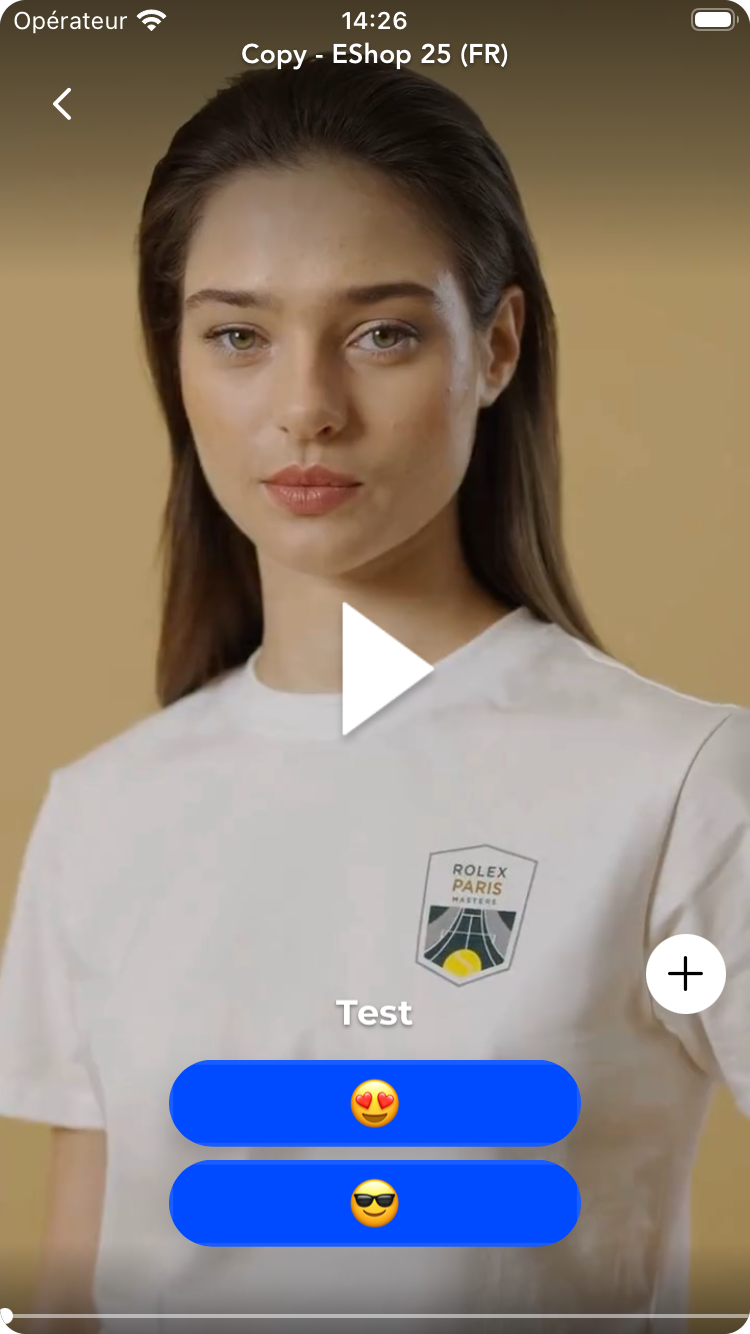
Screen 1
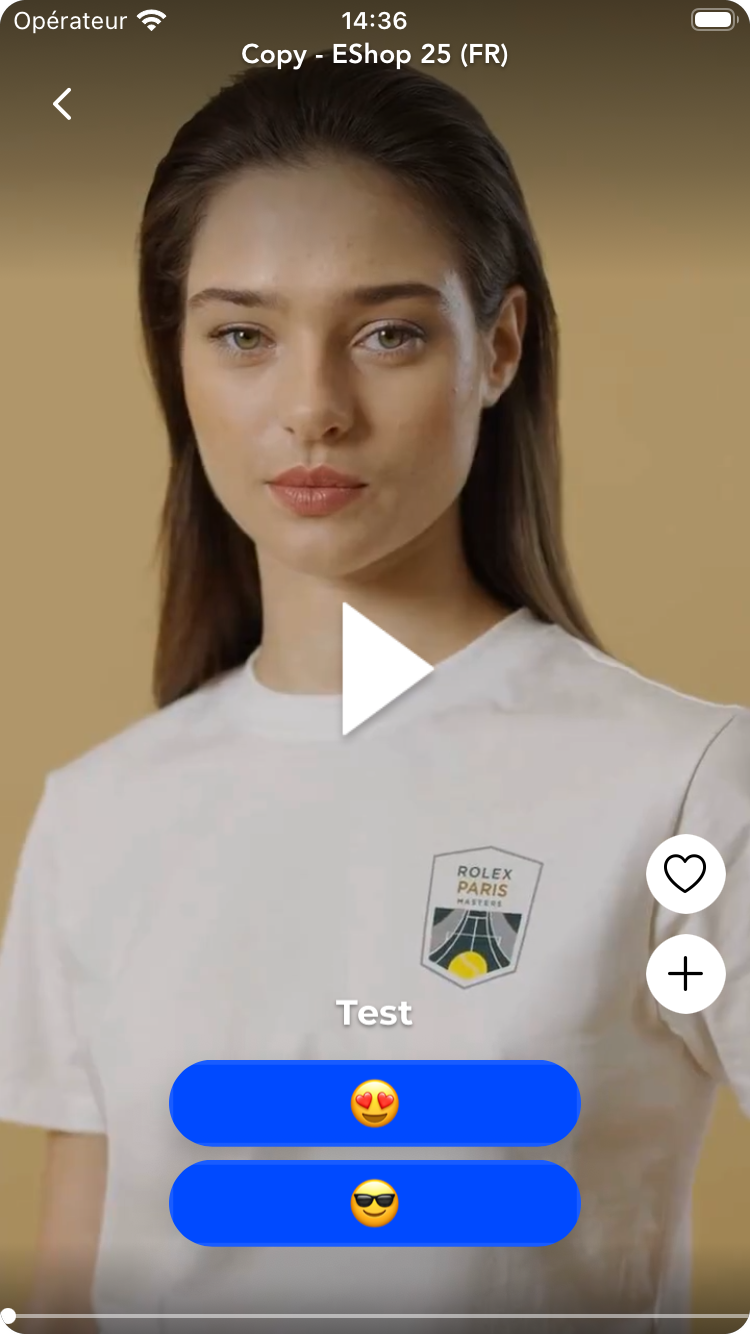
Screen 2
Tips for placement
Action buttons are added from bottom to top of the space available and have a max height and width of 40.
Updated 3 months ago