
Android quickstart
Display a Bubble widget in XML or Jetpack Compose, play a story, and return to your app.
1. Choose a test widget
Start with a Kotlin app and an Activity where you can display the widget. Run the app on an internet-connected device or emulator with Android 6.0 (API 23) or later.
Choose a widget below. You’ll use its Team ID to initialize the SDK and its widget alias to load stories on your screen.
| Widget | Where to find the Team ID and alias |
|---|---|
| Your own widget | In JOIN Studio, publish a mobile widget with at least one story and no audience or product filters for this test. Copy the Team ID and widget alias from its Integration tab. |
| Public demo widget | Use join-showcase-sdk as the Team ID and welcome-showcase as the alias. You can use this widget before you have Studio access. |
2. Install the SDK
Add the dependency to the dependencies block in your app module. Choose the syntax that matches your Gradle file and replace <latest-version> with the version shown on Maven Central.

implementation("com.joinstoriessdk:androidsdk:<latest-version>")
implementation 'com.joinstoriessdk:androidsdk:<latest-version>'
Sync the project in Android Studio. For a minimum-SDK or compile-SDK error, check the host app requirements. If Gradle cannot resolve com.joinstoriessdk:androidsdk, check the version and make sure your project’s dependency repositories include mavenCentral().
3. Initialize the SDK at app startup
If your app defers SDK traffic until a user makes a consent choice, follow the consent flow for when to initialize. Otherwise, in your Application subclass, call JOINStories.init once from onCreate(), using the Team ID from step 1. If your app doesn’t have an Application subclass yet, create StoriesApplication.kt in your app’s package as shown below.
import android.app.Application
import com.joinstoriessdk.androidsdk.JOINStories

class StoriesApplication : Application() {
    override fun onCreate() {
        super.onCreate()
        JOINStories.init(context = this, joinTeamId = "<team-id>")
    }
}
If you created StoriesApplication, set android:name=".StoriesApplication" on the existing <application> element in AndroidManifest.xml. If your subclass is already registered, its manifest entry is ready to use.
To check initialization, set a breakpoint on JOINStories.init and launch the app. You should reach it before the first Activity opens. If JOIN supplied an API key, follow initialization with an API key for the call to use.
4. Add a Bubble widget to one screen
Choose XML and Kotlin or Jetpack Compose to match your screen. Both examples use the host Activity as the widget context and the alias you chose in step 1.
XML and Kotlin
Add the Bubble view to your Activity’s layout.
<com.joinstoriessdk.androidsdk.ui.BubbleTriggerView
    android:id="@+id/join_trigger"
    android:layout_width="match_parent"
    android:layout_height="wrap_content" />
Import the two SDK types in your Activity file. Then assign the alias in onCreate(), after setContentView(...).
import com.joinstoriessdk.androidsdk.JOINStoriesInit
import com.joinstoriessdk.androidsdk.ui.BubbleTriggerView

// Inside Activity.onCreate(), after setContentView(...)
val bubble = findViewById<BubbleTriggerView>(R.id.join_trigger)
bubble.init = JOINStoriesInit(alias = "<widget-alias>")
Jetpack Compose
Add StoriesRow to your screen and call it with the widget alias from step 1. Compose reuses the native view across recompositions while the alias stays the same.
import androidx.compose.foundation.layout.fillMaxWidth
import androidx.compose.runtime.Composable
import androidx.compose.runtime.key
import androidx.compose.ui.Modifier
import androidx.compose.ui.viewinterop.AndroidView
import com.joinstoriessdk.androidsdk.JOINStoriesInit
import com.joinstoriessdk.androidsdk.ui.BubbleTriggerView

@Composable
fun StoriesRow(alias: String) {
    key(alias) {
        AndroidView(
            modifier = Modifier.fillMaxWidth(),
            factory = { context ->
                BubbleTriggerView(context).apply {
                    init = JOINStoriesInit(alias = alias)
                }
            }
        )
    }
}
5. Open and verify your first story
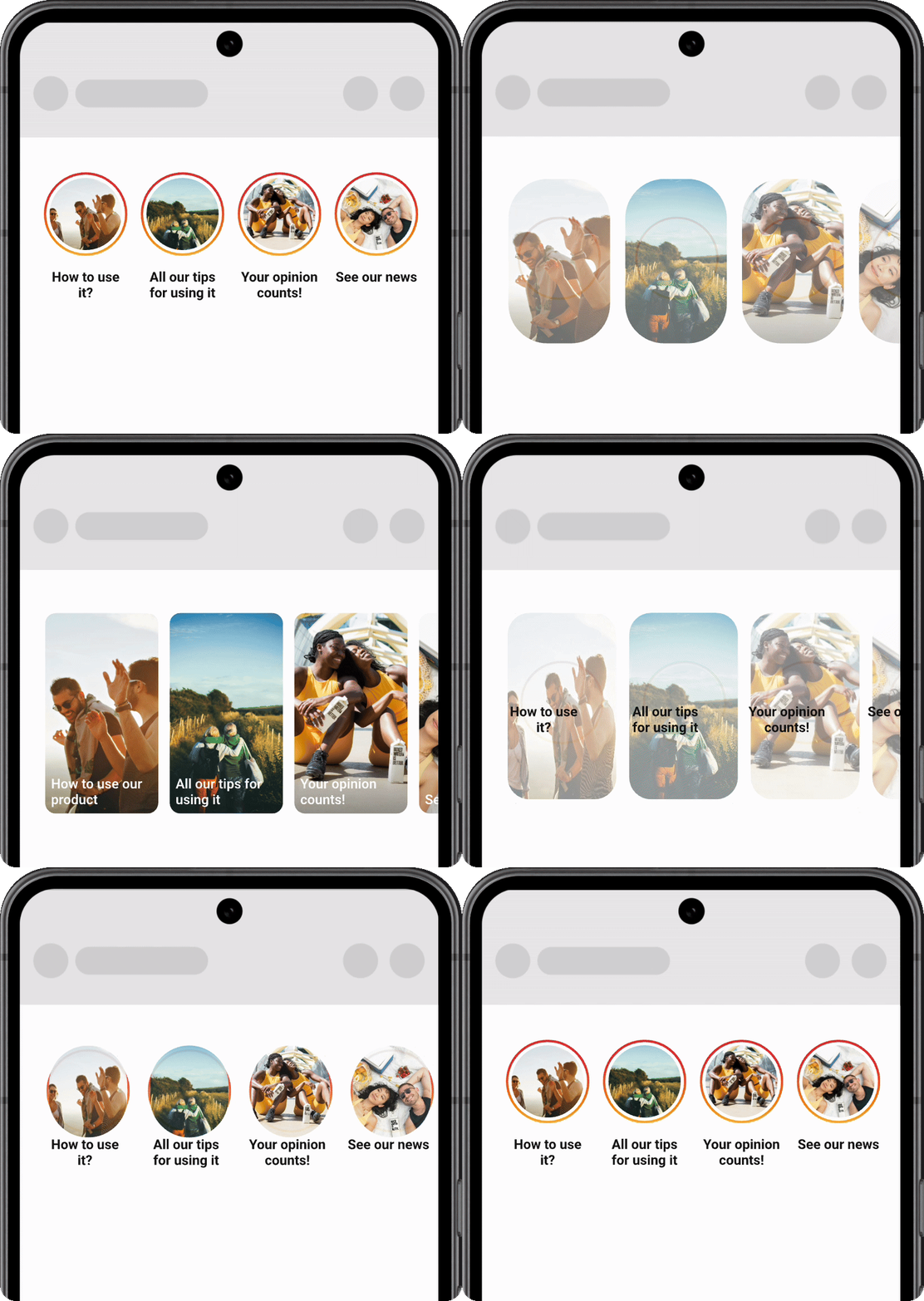
- Run the app and open the screen that contains the widget. At least one thumbnail should appear.
- Tap a thumbnail and check that the player opens the story you selected.
- Close the player and check that you’re back on the screen with the widget.
If the widget stays empty or the player doesn’t open, find the check that matches your symptom.
Once playback works, choose your next integration task or compare your screen with the working XML example or Compose example in the Android demo app.
Updated 2 days ago