
Quickstart
Install the SDK, display a Bubble widget, and open your first story in five steps.
1. Choose a test widget
Use the public demo Team ID join-showcase-sdk and widget alias welcome-showcase for your first run. To use your own content, publish a mobile widget containing at least one story and copy both values from the widget’s Integration tab in JOIN Studio.
2. Install the SDK
Add the plugin from your Flutter project root.

flutter pub add join_stories_flutter
Use an Android or iOS target. Launch a fresh native build after adding the plugin. See the setup reference for platform requirements.
3. Initialize the SDK at app startup
In lib/main.dart, initialize Flutter’s bindings before calling the plugin. Run the app after initialization. The StoriesScreen class comes from step 4.
import 'package:flutter/material.dart';
import 'package:join_stories_flutter/join_stories_flutter.dart';

Future<void> main() async {
  WidgetsFlutterBinding.ensureInitialized();
  await JOINStories.initialize(teamId: 'join-showcase-sdk');
  runApp(const MaterialApp(home: StoriesScreen()));
}
4. Add a Bubble widget to one screen
Add this class below main in the same file. The widget loads its content from the published alias.
class StoriesScreen extends StatelessWidget {
  const StoriesScreen({super.key});

  @override
  Widget build(BuildContext context) {
    return const Scaffold(
      body: SafeArea(child: BubbleWidget(alias: 'welcome-showcase')),
    );
  }
}
5. Open and verify your first story
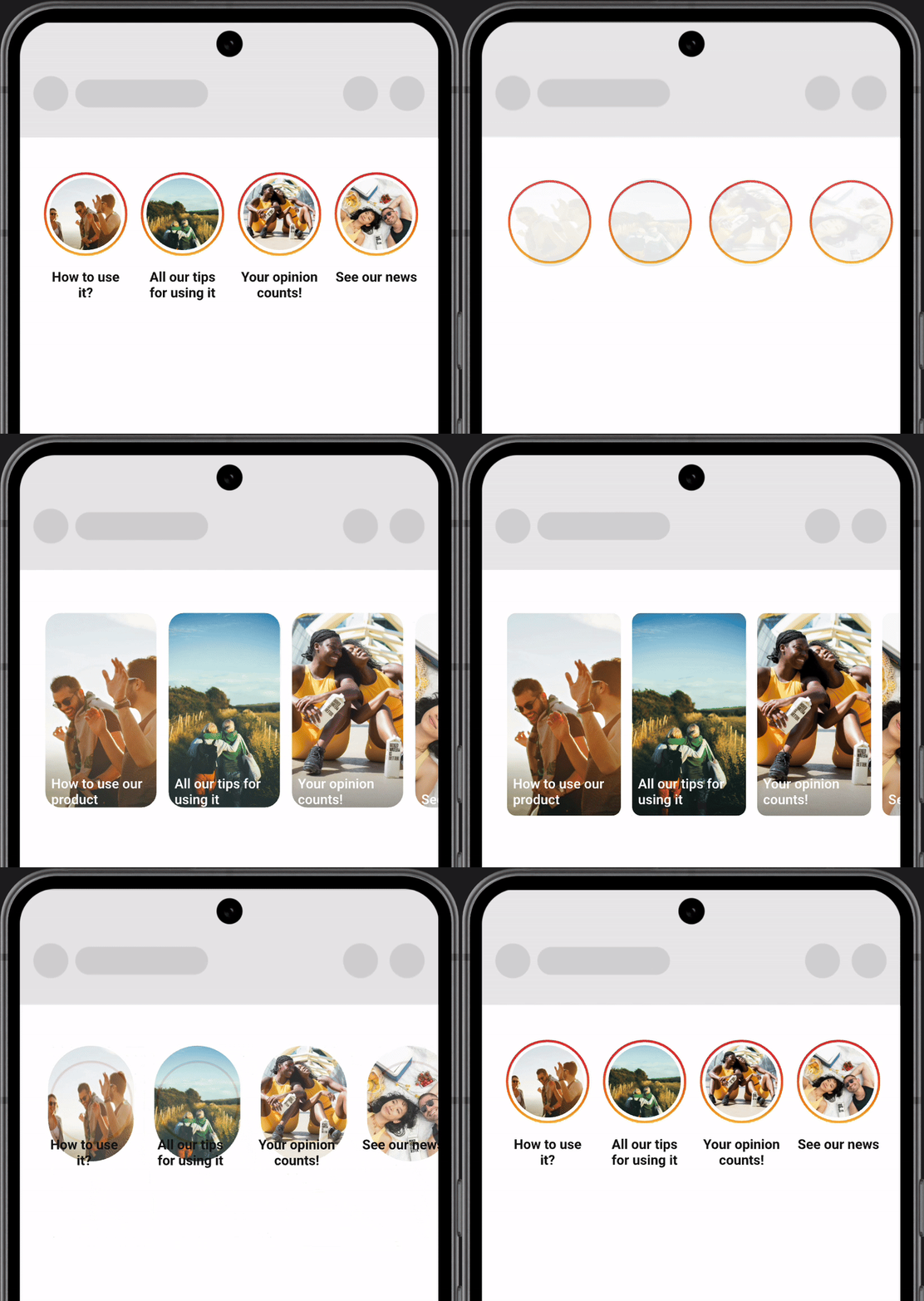
Run the rebuilt app on an Android emulator or iPhone simulator with internet access. Wait for a thumbnail, tap it, verify the story plays, then close the player. The same screen should still show the widget. If it stays empty, compare your placement with the demo and follow widget troubleshooting.
Updated about 2 hours ago