
Quickstart
1. Choose a test widget
Use the public demo Team ID join-showcase-sdk and widget alias welcome-showcase for your first run. To use your own content, publish a mobile widget containing at least one story and copy both values from the widget’s Integration tab in JOIN Studio.
2. Install the SDK
Add the package to your project.

npm install @join-stories/react-native-widgets
For a bare React Native iOS app, add the package’s post_integrate hook to the Podfile and install pods. For an Expo prebuild app, register the config plugin and create a development build. The installation reference includes both configurations. On Android, rebuild the native app after installing the package.
3. Initialize the SDK at app startup
In your app root, initialize JOIN once before mounting a widget. This example uses the screen from step 4. If your app gates JOIN on consent, mount this root after your consent flow permits it.
import React, { useEffect, useState } from 'react';
import { Text } from 'react-native';
import { JoinStories } from '@join-stories/react-native-widgets';
import { StoriesScreen } from './StoriesScreen';

let startup: Promise<void> | undefined;

export default function App() {
  const [state, setState] = useState<'loading' | 'ready' | 'error'>('loading');
  useEffect(() => {
    let mounted = true;
    startup ??= JoinStories.init('join-showcase-sdk');
    startup.then(
      () => { if (mounted) setState('ready'); },
      () => { if (mounted) setState('error'); },
    );
    return () => { mounted = false; };
  }, []);

  if (state === 'error') return <Text>Could not initialize JOIN Stories.</Text>;
  if (state === 'loading') return <Text>Loading stories…</Text>;
  return <StoriesScreen />;
}
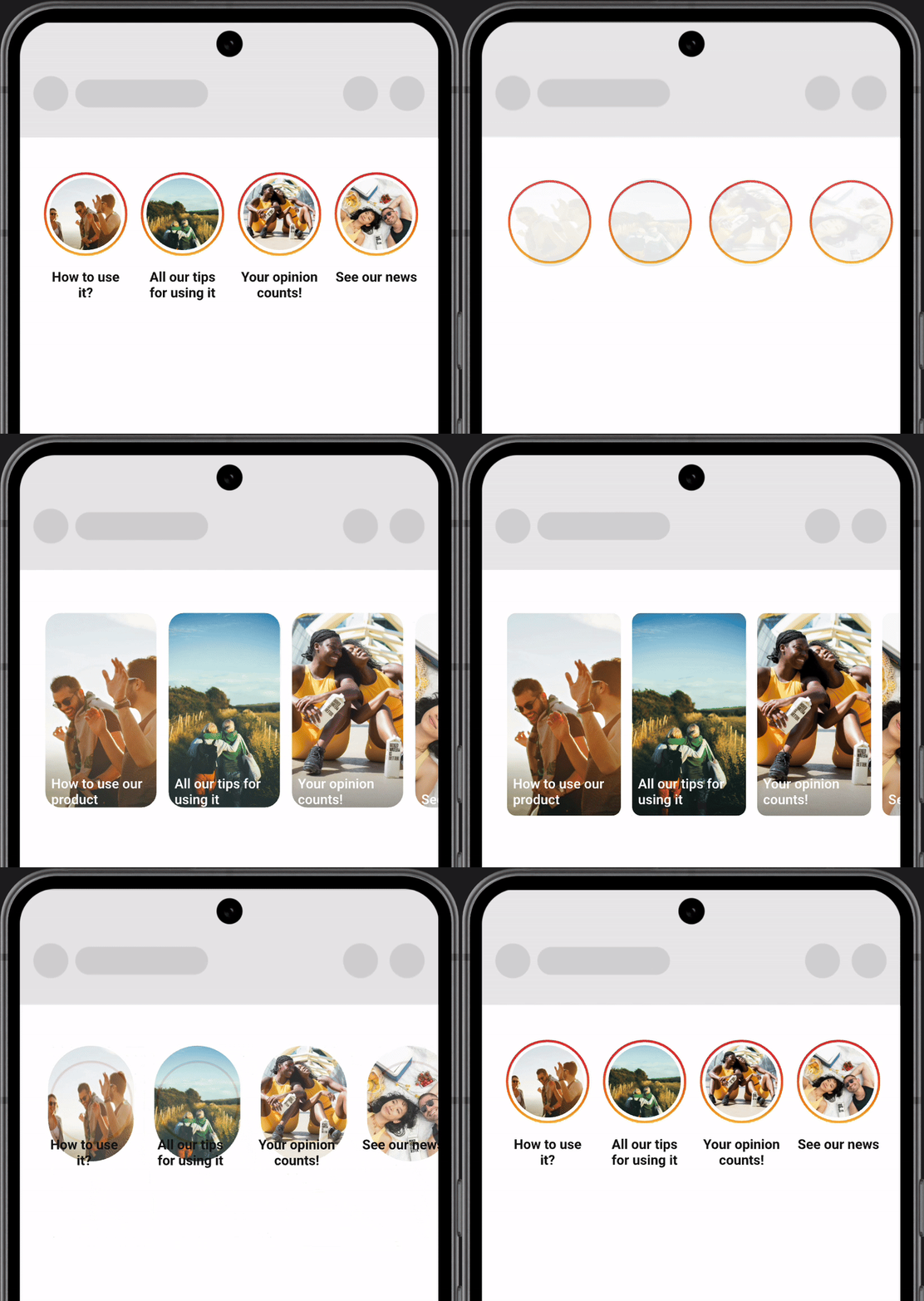
4. Add a Bubble widget to one screen
Save the following component as StoriesScreen.tsx beside App.tsx. Give the native view a height so the layout reserves space for its thumbnails.
import React from 'react';
import { JoinStoriesView } from '@join-stories/react-native-widgets';

export function StoriesScreen() {
  return (
    <JoinStoriesView
      alias="welcome-showcase"
      containerDimension={150}
      style={{ height: 150 }}
    />
  );
}
5. Open and verify your first story
Run the rebuilt app on an Android emulator or iPhone simulator with internet access. Wait for a thumbnail, tap it, verify the story plays, then close the player. The same screen should still show the widget. If it stays empty, compare your placement with the demo and follow widget troubleshooting.
Updated about 2 hours ago